> For the complete documentation index, see [llms.txt](https://docs.aethir.com/llms.txt). Markdown versions of documentation pages are available by appending `.md` to page URLs; this page is available as [Markdown](https://docs.aethir.com/aethir-claw/aethir-claw-setup-guide.md).
# Aethir Claw Setup Guide
Detailed guide for setting up Aethir Claw
### What's covered in this guide
🖥️ Purchase & Setup
🔑 API Keys
⚡ AethirClaw Setup
Cloud server instance setup, SSH keys configuration
Register LLM platform accounts and obtain API keys
Install, configure models, channels & browser
***
### 1. Prerequisites
***
#### 1.1 Purchase a Cloud Server Instance
Visit [https://claw.aethir.com](https://claw.aethir.com/), log in, and purchase a cloud server instance.
**Steps:**
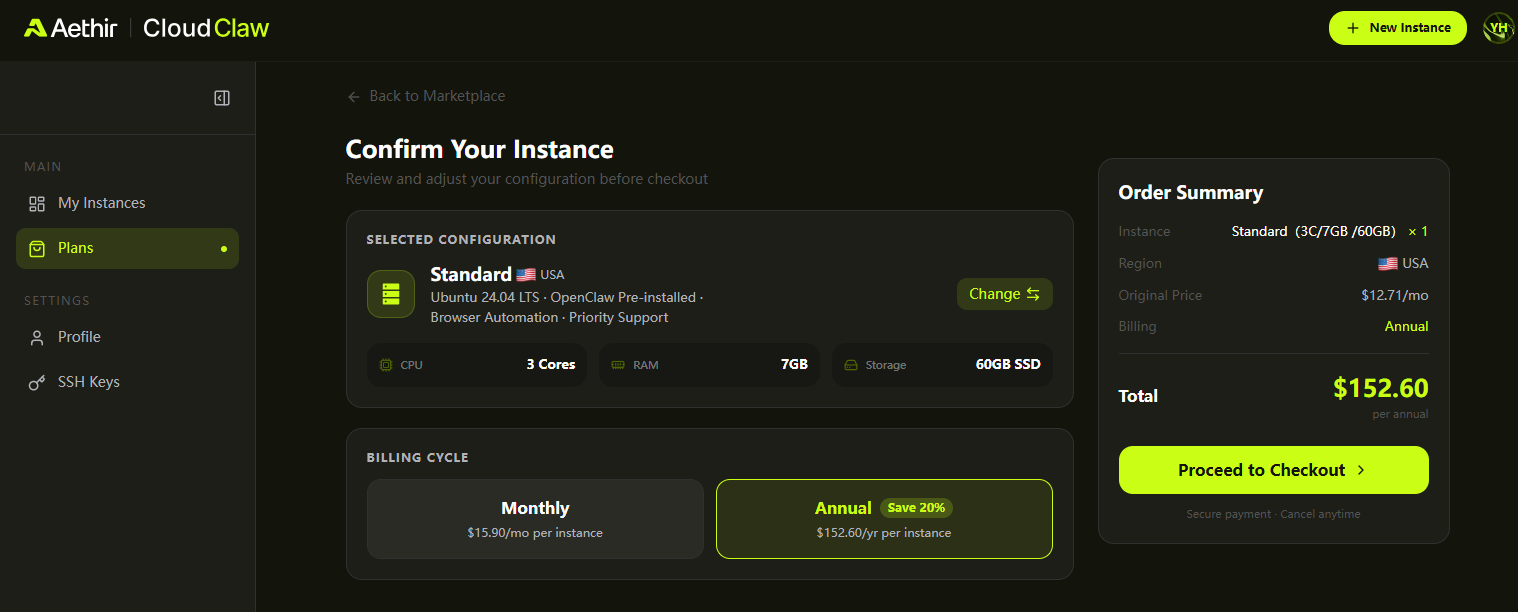
1. On the **"Plans"** page, click **"+ New Instance,"** select your preferred region and instance specifications, then click **"Get Started"** to purchase.
2. After confirming the configuration, choose **monthly** or **annual** payment, then click **"Proceed to Checkout."**
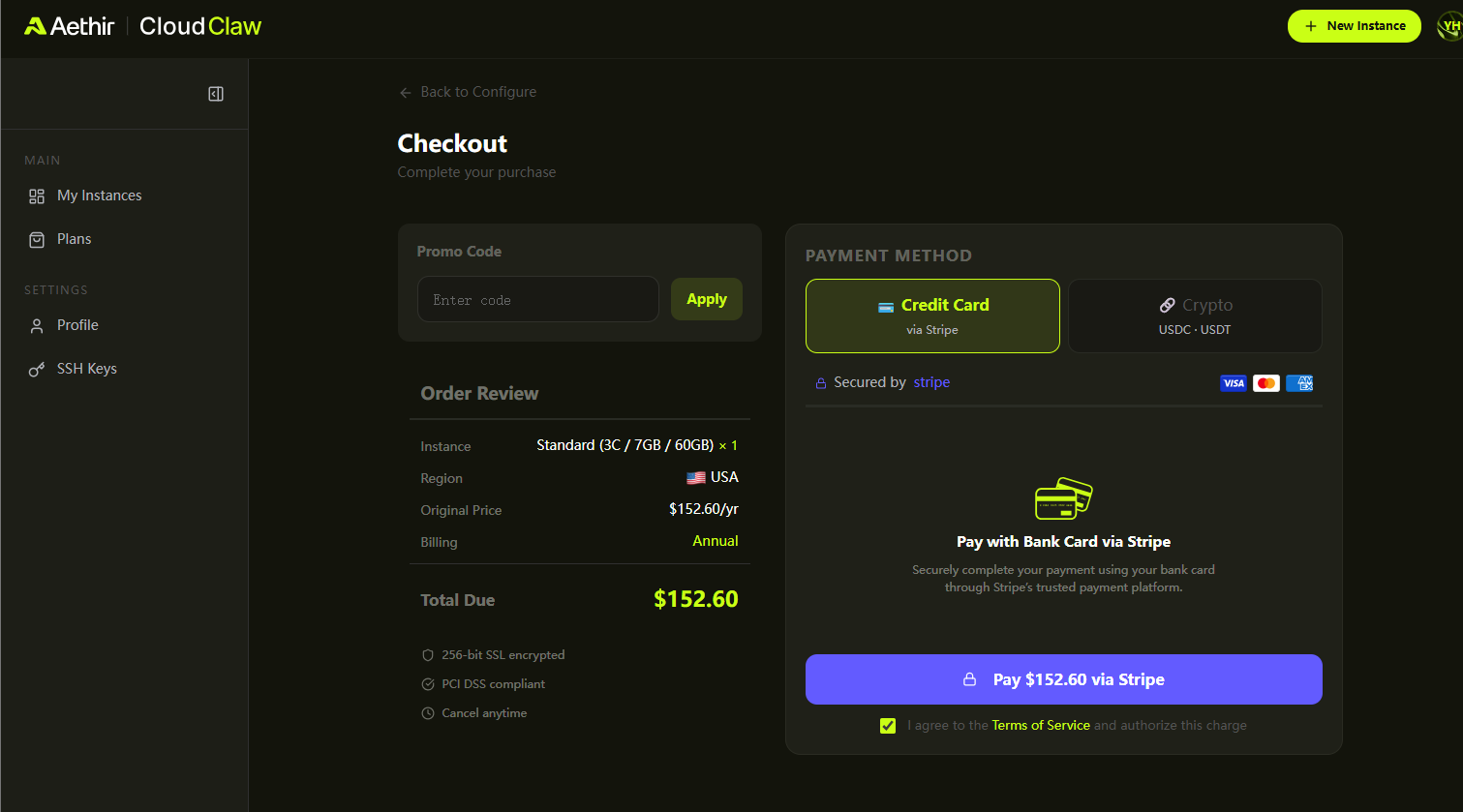
3. On the Checkout page, enter a discount code in the **"Promo Code"** field if you have one, or leave it blank. Select your payment method to complete the transaction.
#### 1.2 Generate an SSH Key & Configure the Public Key
Generate an SSH key on your local machine
Open a command-line terminal on your local PC.
\
If you already have an SSH key on your machine, you can skip this step.
**Step 1**: Check whether the .ssh directory exists.
Before generating the SSH key, check whether your system already has an SSH key directory.
**Windows dir %USERPROFILE%.ssh**
**Mac / Linux ls -la \~/.ssh**
If you see file or directory listings → the .ssh directory exists
If you see File Not Found → the directory does not exist
**1.1** Create the .ssh directory (if needed).
If the .ssh directory does not exist, create it:
#### Windows
mkdir %USERPROFILE%.ssh
#### Mac / Linux
mkdir -p \~/.ssh
**1.2** Navigate to the .ssh directory Switch your current working directory to .ssh:
#### Windows
cd %USERPROFILE%.ssh
#### Mac / Linux
cd \~/.ssh
**Step 2 — Generate the SSH Key**
If you already have an SSH key on your PC, you can skip Step 1 and proceed directly to Step 2.
**1. Open Command Prompt and navigate to your SSH key directory:**
```bash
cd C:\Users\%UserName%\.ssh
```
```bash
cd ~/.ssh
```
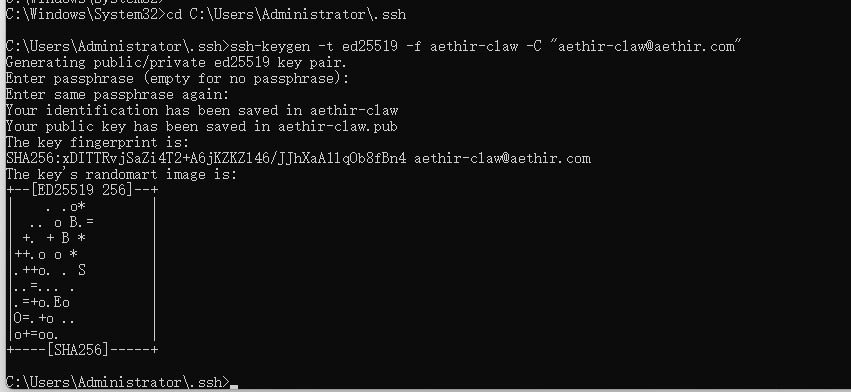
**2. Generate the SSH key.** Replace the email address and filename as needed:
```bash
ssh-keygen -t ed25519 -f aethir-claw -C "aethir-claw@aethir.com"
```
**3.** When prompted for a passphrase, press **Enter** twice to keep it password-less, or enter a passphrase for added security.
**4.** Two files will be created in the current directory:
| File | Description |
| ----------------- | --------------------------------------------------------------------------------- |
| `aethir-claw` | **Private key** — Keep this secure; never share it or copy it to another machine. |
| `aethir-claw.pub` | **Public key** — Copy its contents to the SSH Keys page. |
***
**Step 2 — Add the Public Key to the Cloud Server**
1. Locate the `aethir-claw.pub` file in the `.ssh` directory and open it with Notepad (or any text editor). Copy all of its contents.
You can also retrieve the public key in the terminal directly by using these commands:
**Linux/macOS:**
bash
```bash
cat filename.pub
```
or, for the default key location, use `cat ~/.ssh/id_rsa.pub`.
**Windows (Command Prompt/PowerShell):**
powershell
```powershell
type filename.pub
```
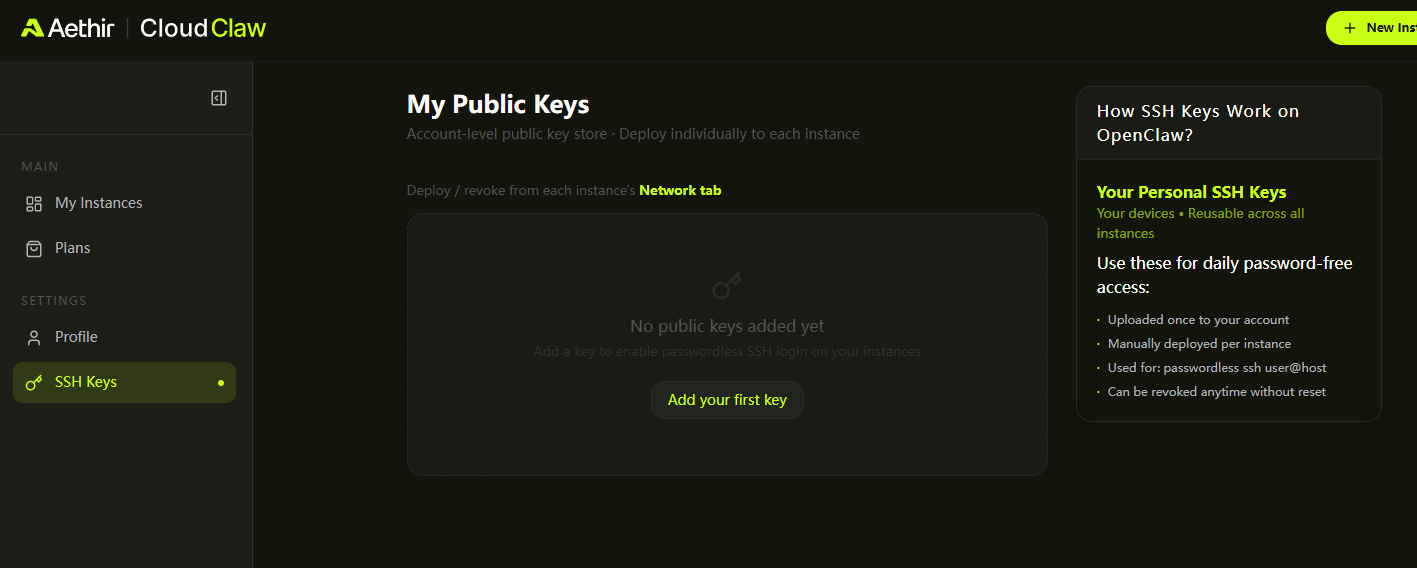
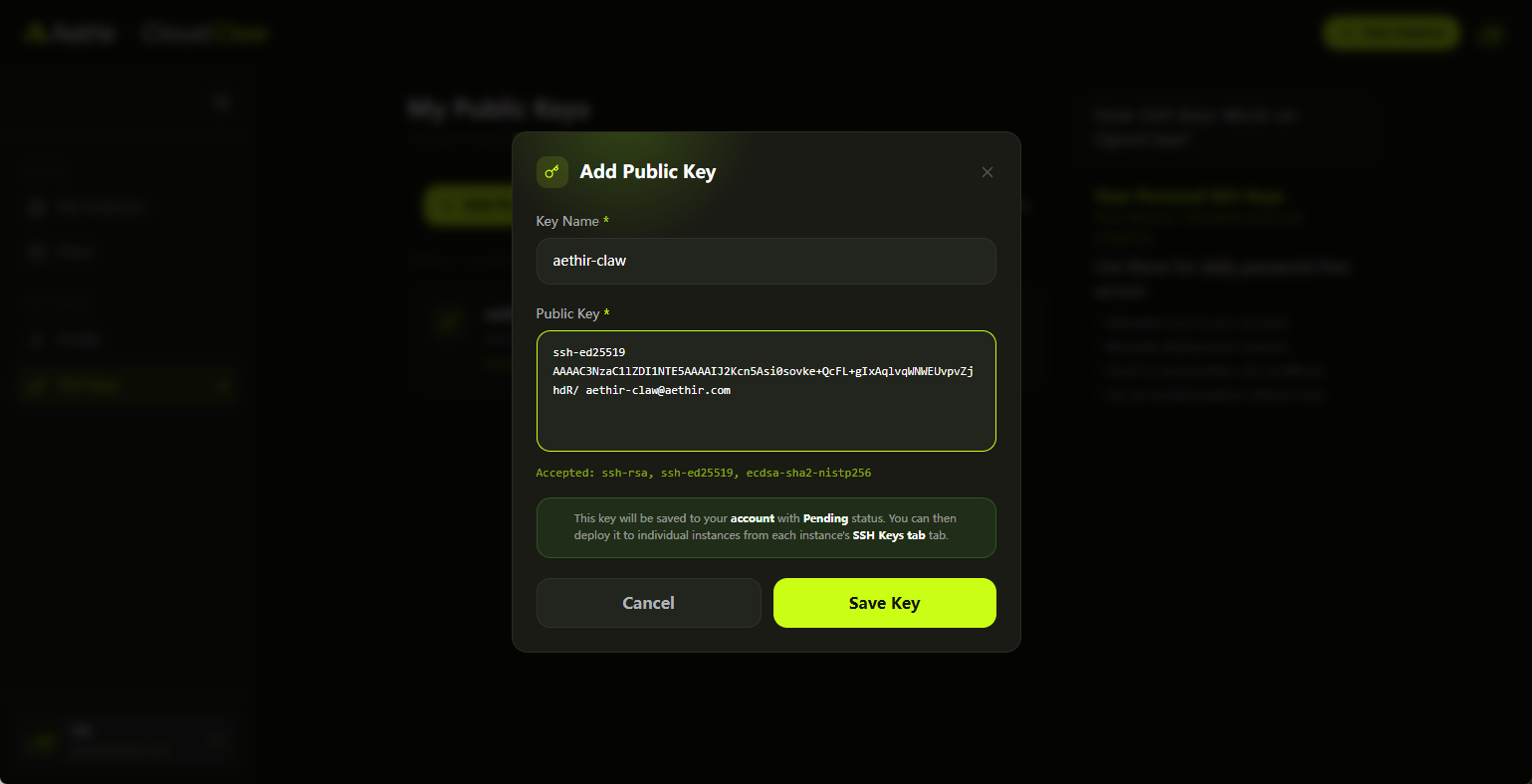
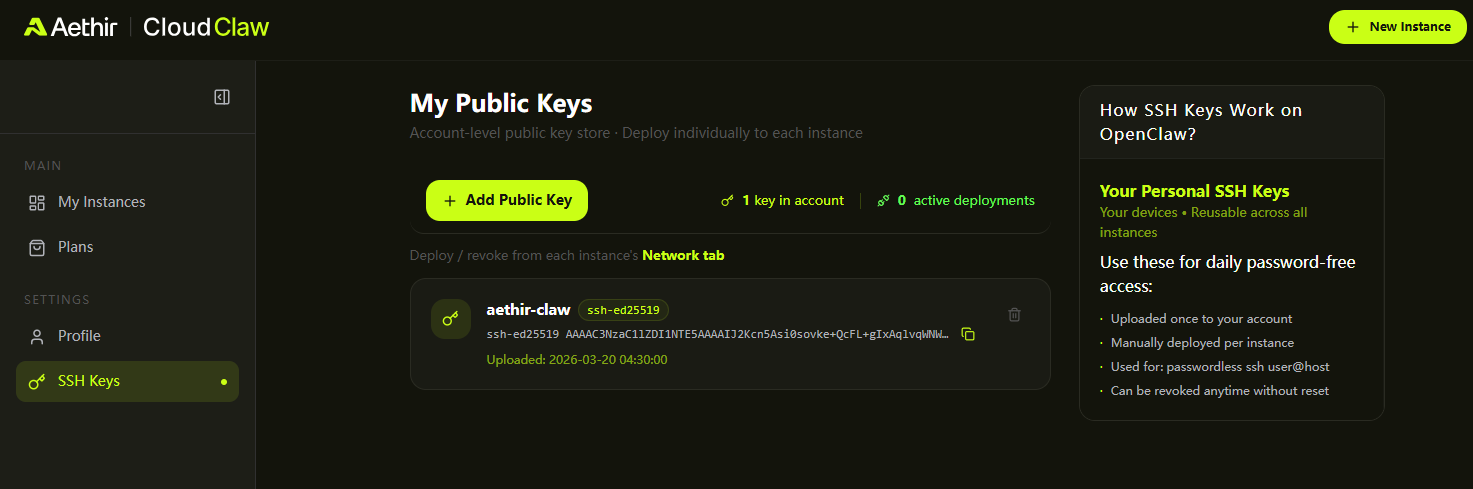
1. In the Aethir Claw web portal, navigate to: **SSH Keys → Add your first key → Add Public Key.** Paste the **entire content** in the .pub file into the Public Key input field
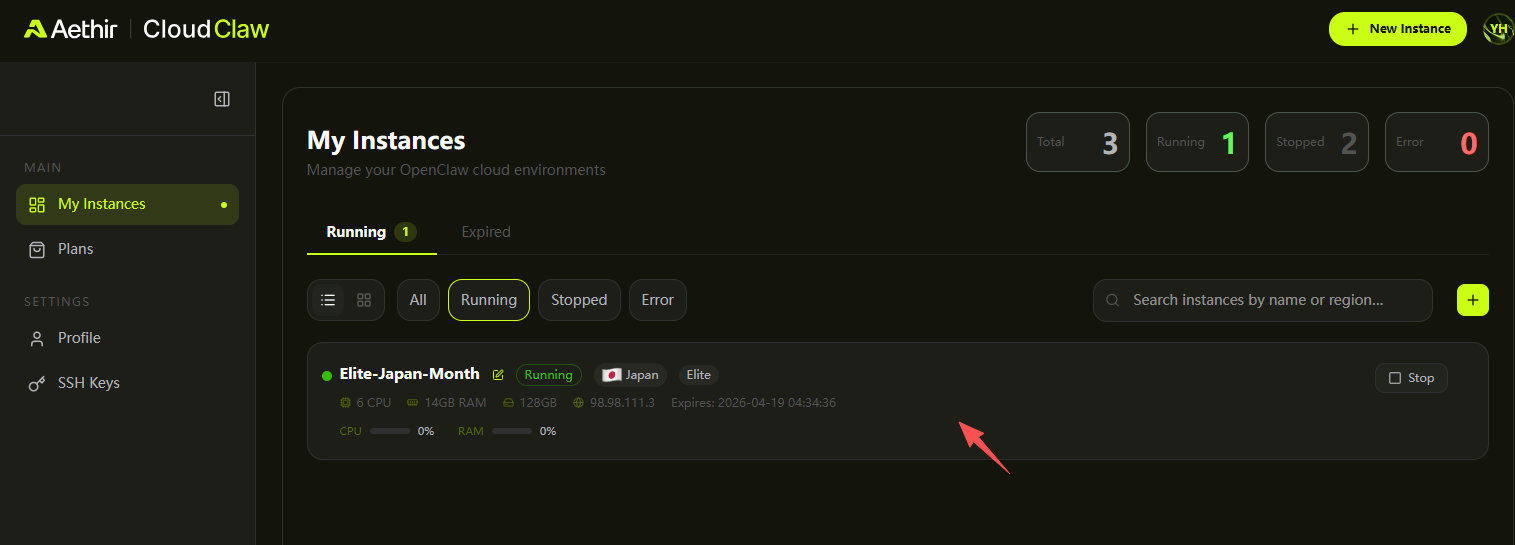
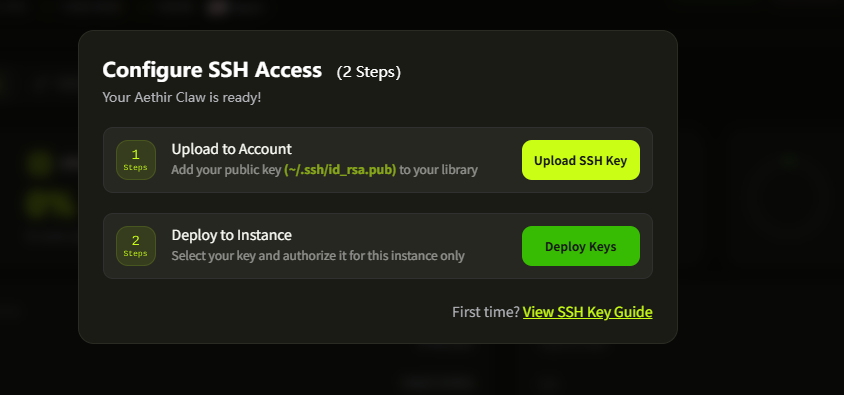
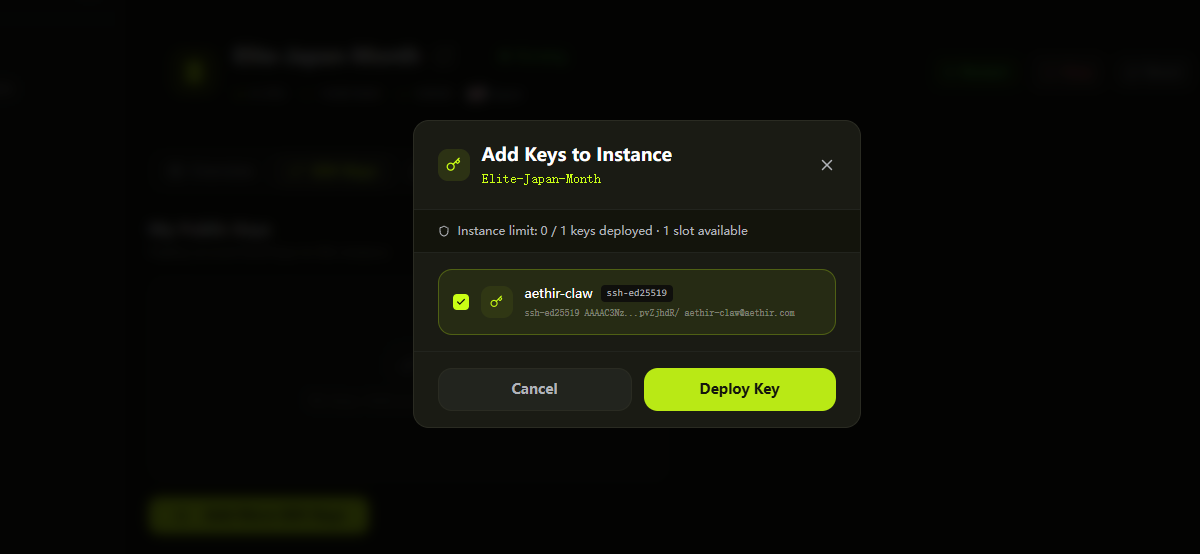
2. After purchasing a cloud instance, go to **My Instances**, click on your instance. In the **"Configure SSH Access"** pop-up, click **"Deploy Keys,"** select the corresponding key you just set up, then click **"Deploy Key"** to complete SSH key configuration.
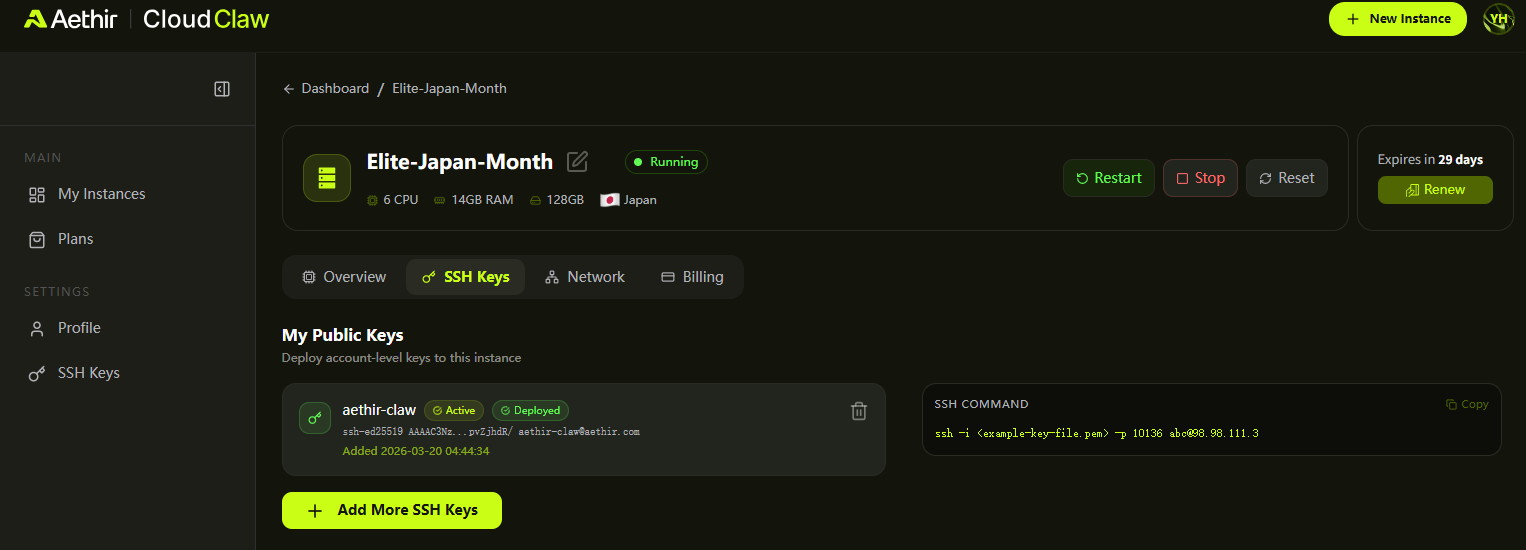
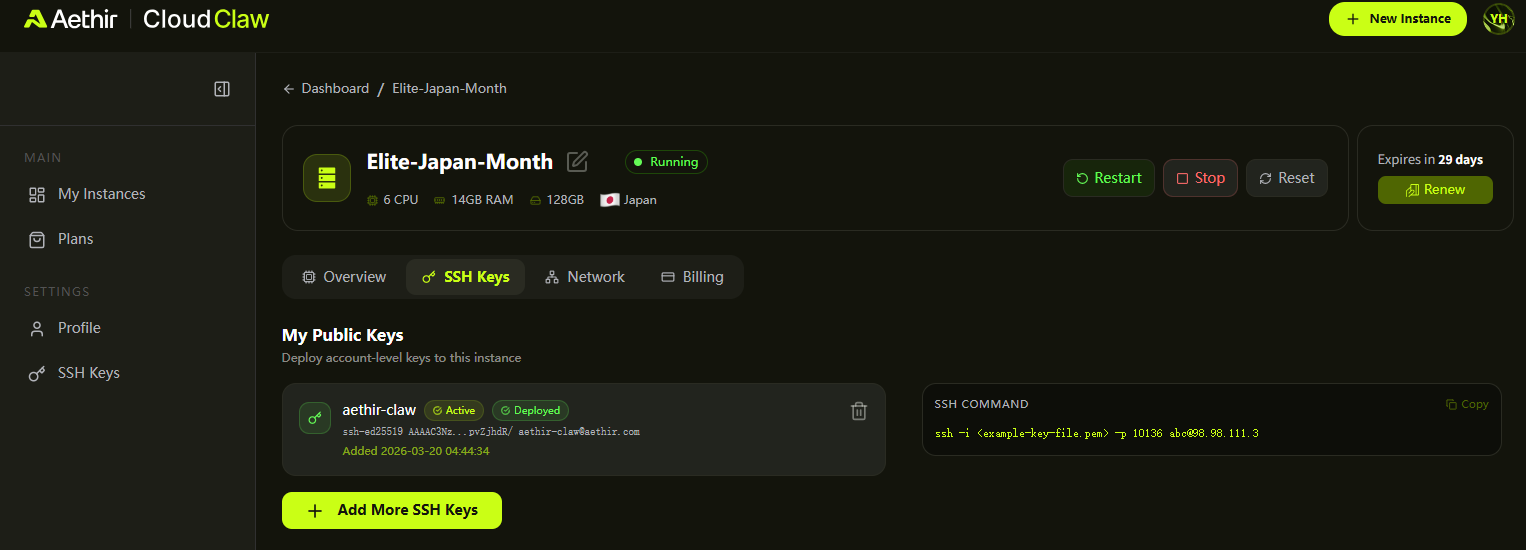
3. On the cloud server Dashboard under the **SSH Keys** tab, confirm your key is listed. You can add multiple keys or remove existing ones. SSH access is only possible after a key is configured.
You can only access the cloud server via SSH **after** at least one SSH key has been configured on the instance.
#### 1.3 Register an LLM Platform Account & Obtain an API Key
OpenClaw requires an API key (or OAuth authorization) from a large language model platform. Register an account on one or more platforms below and apply for an API key before proceeding.
| Platform | URL | Notes |
| ---------------------------- | ------------------------------------------------------------------- | ------------------------------------ |
| OpenRouter | | Recommended — aggregates many models |
| Zhipu (BigModel) | | |
| Qwen (Alibaba Cloud Bailian) | | |
| NVIDIA | | |
| Gemini (Google) | | |
| OpenAI | | |
| xAI | | |
**✔ TIP** — OpenRouter is the easiest starting point. It gives you access to dozens of models (OpenAI, Anthropic, Google, etc.) with a single API key.
***
### 2. Quick Setup of AethirClaw
***
#### 2.1 Remote SSH Access to the Cloud Server
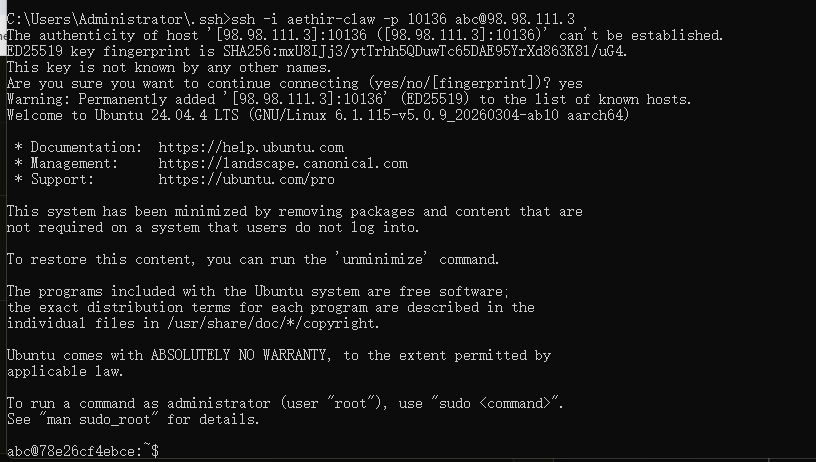
After configuring an SSH key on your instance, the Aethir Claw portal provides a ready-to-use SSH command. Copy and run it in Command Prompt to connect.
**Anatomy of the SSH command:** `ssh -i -p 10136 abc@98.98.111.3`
| Parameter | What to do |
| --------------------------- | ------------------------------------------------------------------------------ |
| `-i ` | Replace with your actual private key filename, e.g. `aethir-claw` |
| `-p 10136 abc@98.98.113.3` | Do **not** modify — the IP, port, and username are auto-assigned by the system |
**How to connect:**
```bash
# Navigate to your SSH key directory first (Windows example):
cd C:\Users\Administrator\.ssh
# Run the SSH command copied from the portal (this is just a sample):
ssh -i aethir-claw -p 10136 abc@98.98.113.3
```
#### 2.2 Remote Desktop Access (RDP)
Remote desktop (RDP) access requires setting up an SSH encrypted tunnel first, then connecting with an RDP client.
**Step 1 — Create the SSH Tunnel**
```bash
# Use SSH to establish an encrypted tunnel:
ssh -i aethir-claw -L :localhost:3389 abc@ -p
```
| Parameter | Description |
| -------------------------- | --------------------------------------------------------------- |
| `-i aethir-claw` | Replace `aethir-claw` if your private key filename is different |
| `` | Choose any available local port, e.g. `13390` |
| `localhost:3389` | Do **not** modify — this is the RDP port on the cloud server |
| `` and `` | Find these in the **Network** tab of your cloud server instance |
| `abc` | Username is always `abc` — no modification needed |
**Step 2 — Connect with an RDP Client**
After the tunnel is established, open your RDP client and connect to `localhost:` (e.g. `localhost:13390`).
| OS | RDP Client |
| ----------- | ------------------------------------------------------------------- |
| **Linux** | Remmina |
| **macOS** | Microsoft Remote Desktop (download from the App Store) |
| **Windows** | Microsoft Remote Desktop — press `Win+R` and type `mstsc` to launch |
***
#### 2.3 OpenClaw Wizard — Installation & Configuration
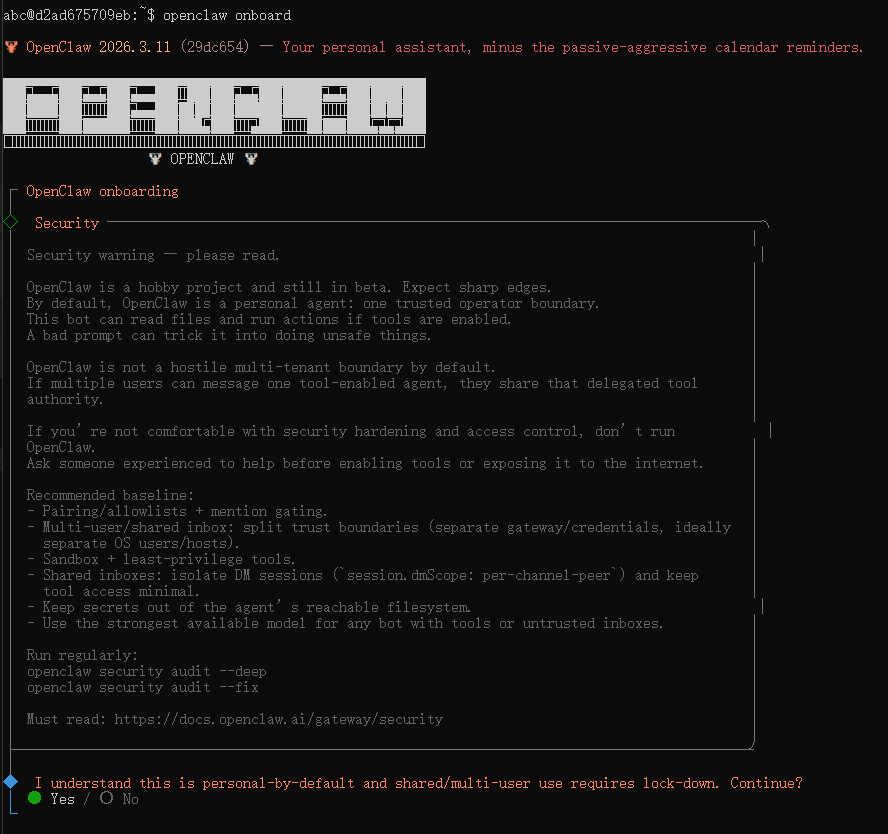
Once connected via SSH, run the OpenClaw onboarding wizard:
```bash
# openclaw will take approximately 30 seconds to initialize
openclaw onboard
```
**ℹ NOTE** — Use the arrow keys to navigate between options, the spacebar to select/deselect, and **Enter** to confirm and move to the next step.
**Follow the recommended settings in the table below:**
| Configuration Option | Recommended Setting |
| ------------------------------------------------------------- | ------------------------------------------- |
| I understand this is powerful and inherently risky. Continue? | Select **"Yes"** |
| Onboarding mode | Select **"QuickStart"** |
| Model/Auth Provider | Select **"Skip for now"** — configure later |
| Filter models by provider | Select **"All providers"** |
| Default model | Use the default configuration |
| Select channel (QuickStart) | Select **"Skip for now"** — configure later |
| Search provider | Select **"Skip for now"** — configure later |
| Configure skills now? (recommended) | Select **"No"** — configure later |
| Enable hooks? | Select **"Skip for now"** |
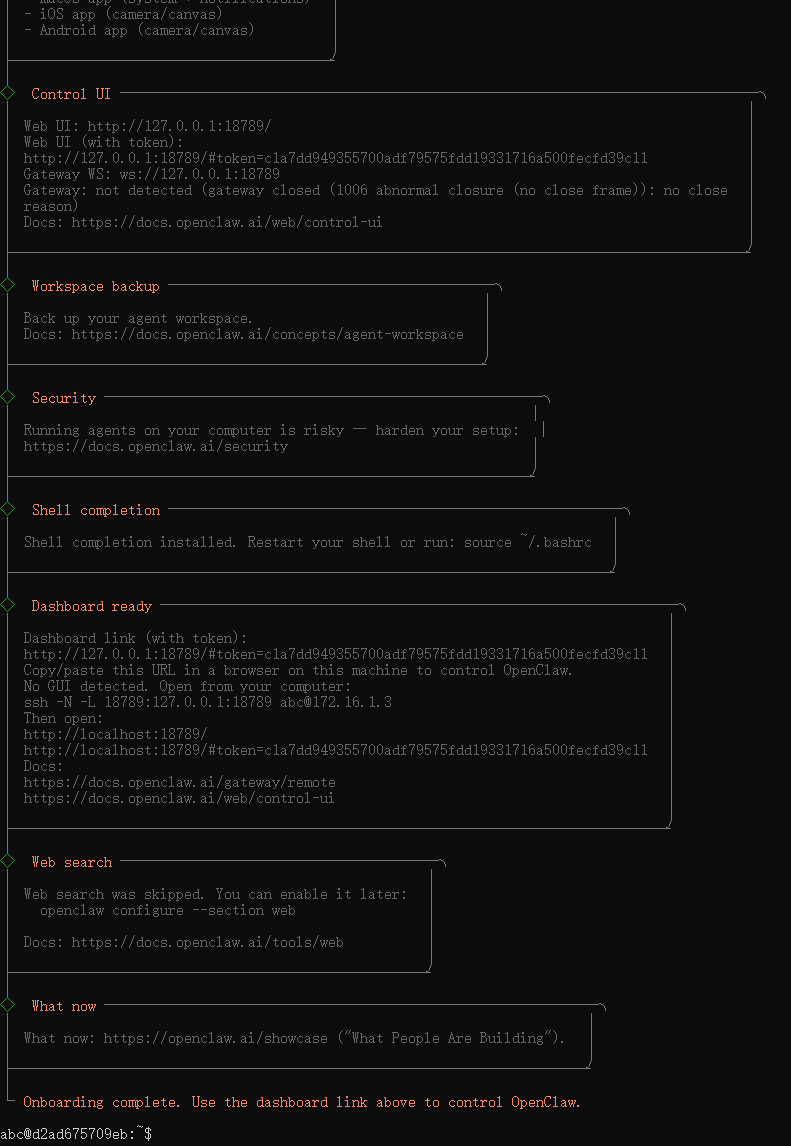
**✔ TIP** — When complete, you will see **"Onboarding complete..."** - the basic setup is finished. You can now proceed to configure a model and channel.
#### 2.4 Configure the Model
You will need the API Key obtained in Section 1.3. Run the configuration wizard and select the matching model provider.
Model configurations can be set up multiple times; you can configure multiple models to enable routing/switching.
```bash
# In the SSH command-line window, run the configuration wizard:
openclaw configure
```
**Follow the steps in the table below (example uses OpenRouter):**
| Configuration Option | Recommended Setting |
| ---------------------------------------- | ------------------------------------------------------------------------------- |
| Where will the Gateway run? | Select: **Local (this machine ... ws\://127.0.0.1:18789)** |
| Select sections to configure | Select: **Model** |
| Model/auth provider | Select the provider matching your API Key from Section 1.3, e.g. **OpenRouter** |
| How do you want to provide this API key? | Select: **Paste API key now** |
| Enter API key | Paste the API key you obtained |
| Models in /model picker (multi-select) | Select the desired model(s); default is recommended |
| Confirmation message | `...Updated ~/.openclaw/openclaw.json` — your API key is saved ✓ |
| Select sections to configure (follow-up) | Select **"Channels"** to continue, or **"Continue"** to exit |
***
#### 2.5 Configure Channels
Channels connect OpenClaw to messaging platforms (Telegram, WhatsApp, etc.). Configure each channel you need.
```bash
# In the SSH command-line window, run the configuration wizard:
openclaw configure
```
| Configuration Option | Recommended Setting |
| -------------------- | -------------------------------------------------------------------------------- |
| Channels | Select **"Configure/link (Add/update channels)"** |
| Select a channel | Choose your platform, e.g. **Telegram (Bot API)** — recommended for first-timers |
**Supported channels:**
| | | |
| ------------------- | ---------------------- | -------------------- |
| Telegram (Bot API) | WhatsApp (QR link) | Discord (Bot API) |
| IRC (Server + Nick) | Google Chat (Chat API) | Slack (Socket Mode) |
| Signal (signal-cli) | iMessage (imsg) | LINE (Messaging API) |
| Feishu / Lark (飞书) | Nostr (NIP-04 DMs) | Microsoft Teams |
| Mattermost (plugin) | Nextcloud Talk | Matrix (plugin) |
| BlueBubbles (macOS) | Zalo (Bot API) | Zalo (Personal) |
| Synology Chat | Tlon (Urbit) | |
**After each channel configuration, restart the gateway:**
```bash
# Check if openclaw-gateway is already running:
ps -ef | grep openclaw-gateway
# If a process is found (e.g. PID 370), stop it first:
kill -9 370
# Start gateway in nohup mode (keeps running after terminal closes):
nohup openclaw gateway > nohup.out 2>&1 &
```
***
**2.5.1 Telegram Channel Setup**
1. Open Telegram and search for **BotFather** — the official bot management account.
2. Send `/newbot`, give the bot a name, and choose a unique username ending with `"bot"`.
3. BotFather will return a token. Copy the part after `"HTTP API:"`. Example:
```
xxxxxxxxx:xxxxxxxxxxxxxxxxxxxxxx (token)
```
4. In the SSH window, run the configuration wizard and select: **Local → Channels → Telegram**, then paste the token:
```bash
openclaw configure
```
5. Return to Telegram, open your bot's chat window, and send `/start`. You will receive a pairing code:
```
OpenClaw: access not configured.Your Telegram user id: 7580661075Pairing code: 386VF25LAsk the bot owner to approve with: openclaw pairing approve telegram 386VF25L
```
6. In the SSH window, approve the pairing:
```bash
openclaw pairing approve telegram
```
7. The Agent is now online in Telegram. Return to Telegram, find your bot, and test the conversation.
***
**2.5.2 WhatsApp Channel Setup**
1. In the SSH window, run:
```bash
openclaw configure
```
2. When prompted **"Where will Gateway run?"** select: **Local (this machine ... ws\://127.0.0.1:18789)**
3. Under **"Select sections to configure,"** choose **Channels → WhatsApp → Generate a QR code.**
4. On your phone, open WhatsApp → tap the three dots **(⋮)** → **Linked devices** → scan the QR code.
5. Confirm your WhatsApp phone number: **three dots → Settings → User profile → Phone.**
6. Enter the phone number in the terminal to complete WhatsApp authorization.
```bash
openclaw channels login --channel whatsapp
```
**✔ TIP** — Open WhatsApp and send yourself a message to test. The Agent will respond — e.g., *"Here's a summary of the top 10 news stories in the AI field this week."*
***
**2.5.3 Feishu Channel Setup**
See the full Feishu configuration documentation at:
***
#### 2.6 OpenClaw Control Web Interface *(Optional)*
Launch the dashboard to test conversations and view agents, skills, nodes, and more.
```bash
openclaw dashboard
```
Copy the displayed Dashboard URL and open it in your local browser.
***
#### 2.7 Enable Built-in Skills ⚡ Important
The cloud server comes pre-installed with commonly used skills. Enable them all with a single command:
```bash
sh /preclaw/pre_skills.sh
```
**⚠ IMPORTANT** — Run this step after completing the initial setup to activate all pre-installed skills in one command.
**14 built-in skills will be activated:**
| # | Skill | # | Skill |
| -- | ------------------- | -- | ---------------------- |
| 1 | skill-vetter | 2 | Agent Browser |
| 3 | Tavily Web Search | 4 | find-skills |
| 5 | weather | 6 | self-improving-agent |
| 7 | summarize | 8 | Proactive Agent |
| 9 | gog | 10 | Clawsec |
| 11 | Multi Search Engine | 12 | ontology |
| 13 | GitHub | 14 | office-automation-test |
After execution, the activated skills will appear on the **Skills** page of the OpenClaw Control web interface.
***
#### 2.8 Configure the Chrome Browser
Configure Chrome so OpenClaw can access web resources through the browser process.
```bash
# Configuration commands:
openclaw config set browser.defaultProfile "openclaw"
openclaw config set browser.headless true
openclaw config set browser.noSandbox true
openclaw config set browser.executablePath "/usr/bin/chromium"
# Verification:
openclaw gateway # Start the gateway
openclaw browser start # Start the browser
openclaw browser open https://google.com # Open the Google URL
```
***
#### 2.9 OpenClaw Command Reference
Quick reference for all OpenClaw CLI commands.
Core/Setup
| Command | Description |
| --------------------- | ----------------------------- |
| `openclaw tui` | Launch the terminal UI |
| `openclaw dashboard` | Open the control panel |
| `openclaw onboard` | Initial global configuration |
| `openclaw setup` | Initialize configuration file |
| `openclaw configure` | Interactive configuration |
| `openclaw config get` | View current configuration |
| `openclaw config set` | Set a configuration option |
Channels
| Command | Description |
| ---------------------------- | ---------------------------------------------- |
| `openclaw channles add` | Add a channel |
| `openclaw channles login` | Log in to a channel (WhatsApp, Telegram, etc.) |
| `openclaw channles list` | List connected channels |
| `openclaw channles logout` | Log out of a channel |
| `openclaw message send` | Send a message |
| `openclaw message broadcast` | Broadcast a message |
| `openclaw status` | View status (channel health, recent sessions) |
Gateway
| Command | Description |
| ------------------------------------------- | ----------------------------------- |
| `openclaw gateway status` | Gateway status |
| `openclaw gateway status --deep` | Detailed gateway status |
| `openclaw gateway status --json` | Gateway status in JSON format |
| `openclaw gateway install` | Install the gateway |
| `nohup openclaw gateway > nohup.out 2>&1 &` | Start gateway in background (nohup) |
| `openclaw gateway stop` | Stop the gateway |
| `openclaw health` | View gateway health status |
Skills & Plugins
| Command | Description |
| --------------------------------- | ------------------------------------------ |
| `openclaw skills` | Skill management (install, update, delete) |
| `openclaw skills install ` | Install a skill |
| `openclaw skills list` | List installed skills |
| `openclaw plugins` | Plugin management |
Agents & Sessions
| Command | Description |
| -------------------- | ------------------------- |
| `openclaw sessions` | List session history |
| `openclaw memory` | Search memory contents |
| `openclaw agents` | Manage independent agents |
| `openclaw cron` | Scheduled task management |
| `openclaw cron list` | View scheduled tasks |
| `openclaw cron add` | Add a scheduled task |
Browser
| Command | Description |
| ------------------------- | ------------------------------------- |
| `openclaw browser` | Control the browser (automation) |
| `openclaw browser status` | Browser status |
| `openclaw browser start` | Start the AI-dedicated browser |
| `openclaw nodes` | Manage connected nodes (phones, etc.) |
| `openclaw node` | Single node control |
Diagnostics & Maintenance
| Command | Description |
| ------------------------ | ------------------------------ |
| `openclaw doctor` | Diagnose issues + auto-fix |
| `openclaw doctor --fix` | Auto-fix issues |
| `openclaw logs` | View logs |
| `openclaw logs --follow` | Real-time log tracking |
| `openclaw update` | Update the CLI |
| `openclaw reset` | Reset configuration (keep CLI) |
| `openclaw uninstall` | Completely uninstall |
.png?alt=media&token=d46fcf8b-84c4-430d-bb24-392b4ef7b4df)